Consume content your way

Inoreader helps content reach you faster. But once it does, how you consume that content matters just as much. In addition to powerful automation tools, our Pro plan offers a wide range of features designed to make reading, listening, and working with information as convenient and flexible as possible. From article translations and text-to-speech to file uploads, annotations, and offline mode, you can adapt Inoreader to fit your preferences, not the other way around.
Article translations
Inoreader doesn’t just bring relevant articles to you – it also helps you read them in your preferred language, regardless of the original source.
When you open an article written in a language different from your interface language, you’ll see the Translate article button. Click it, or press Q on your keyboard for quick access. Within seconds, the article is translated into your interface language. You can switch back to the original version at any time with a single click.
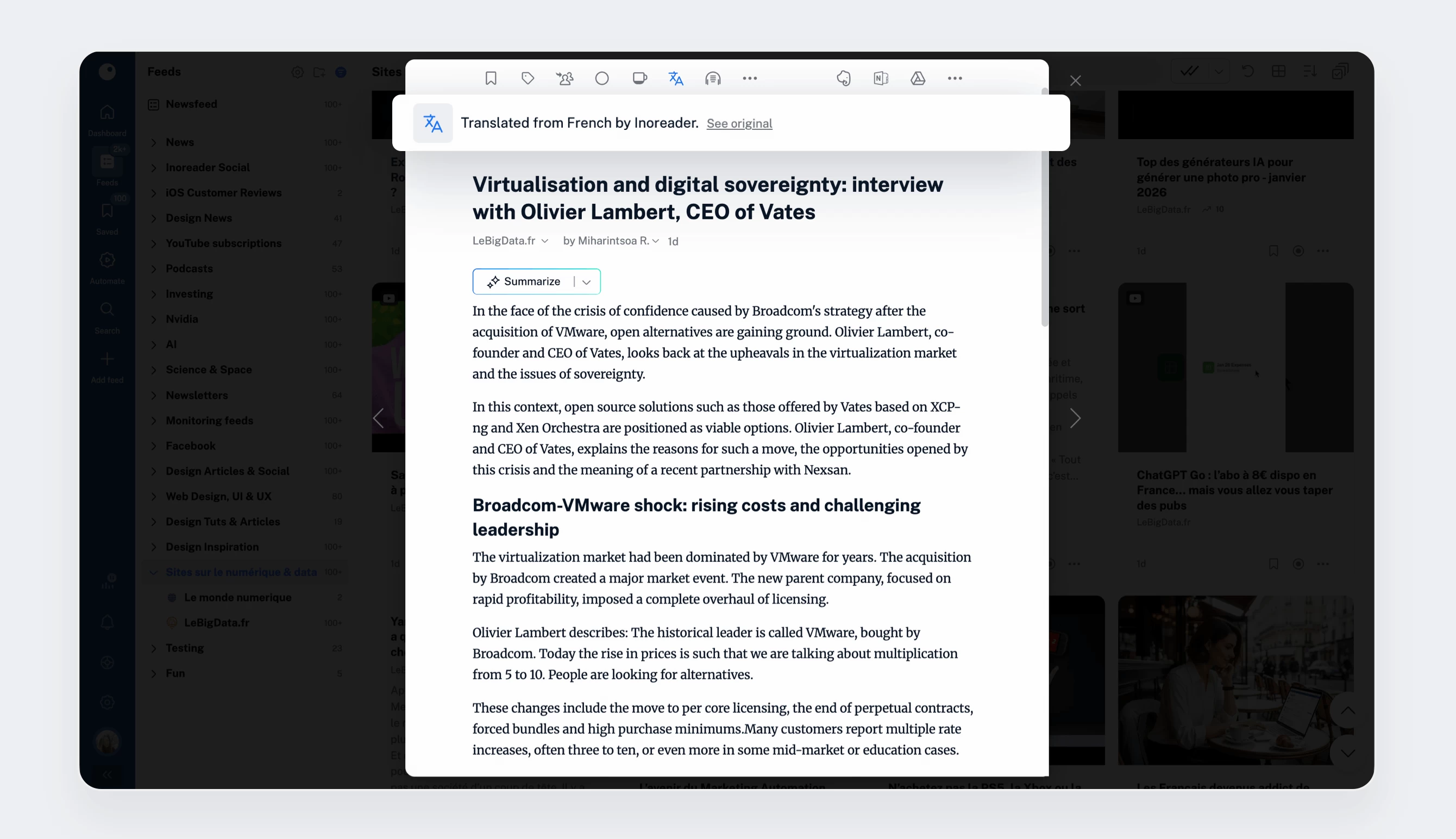
Translated articles behave just like regular ones – you can save them to Read later, annotate them, print them, or export them as PDFs.
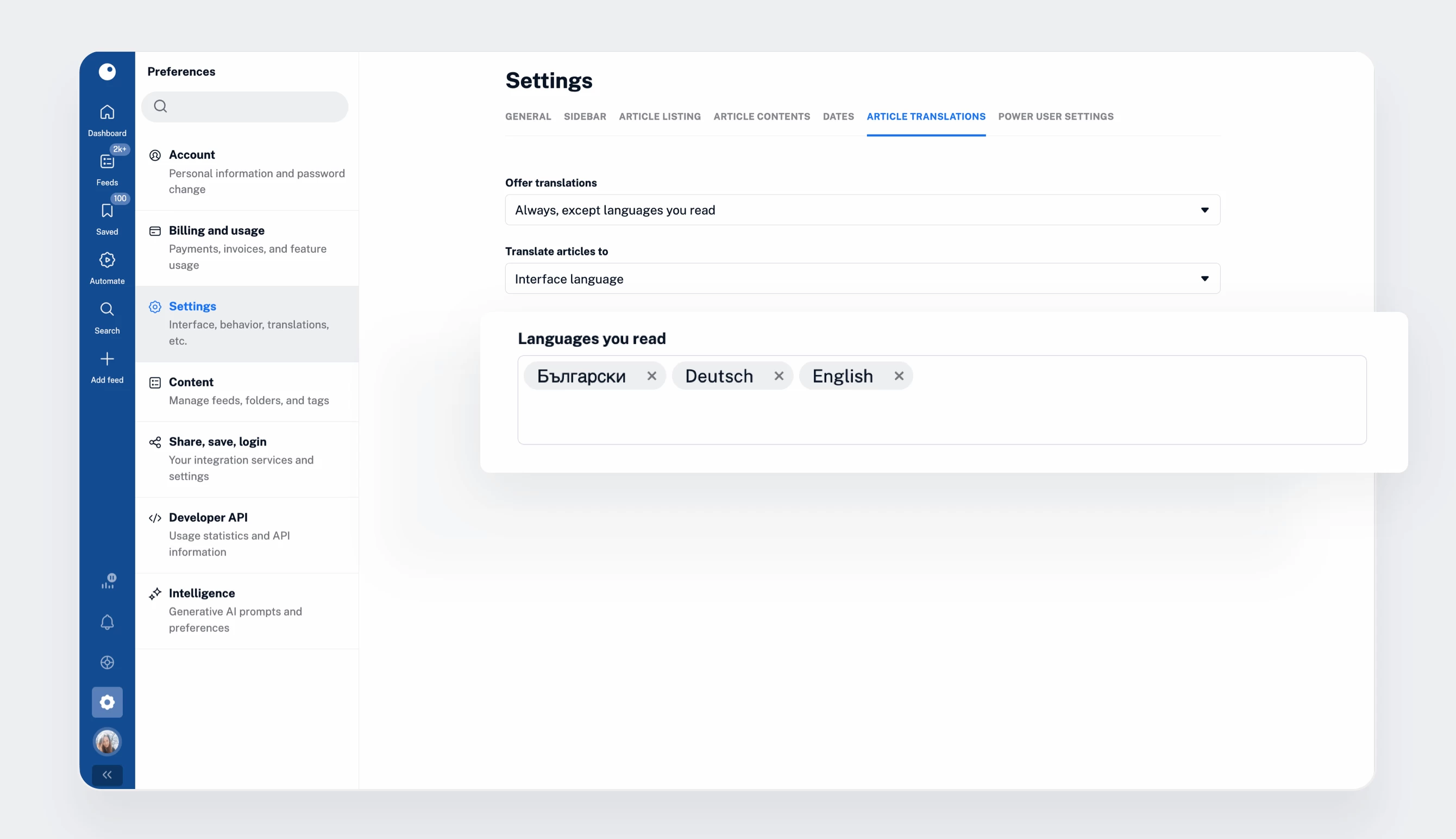
For more control, go to Preferences > Settings > Article translations. From there, you can choose when Inoreader should offer translations:
- Never – turn translations off
- Always – show the option for all articles
- Intelligently – based on the languages you understand
You can define the last setting from the Languages you read section.
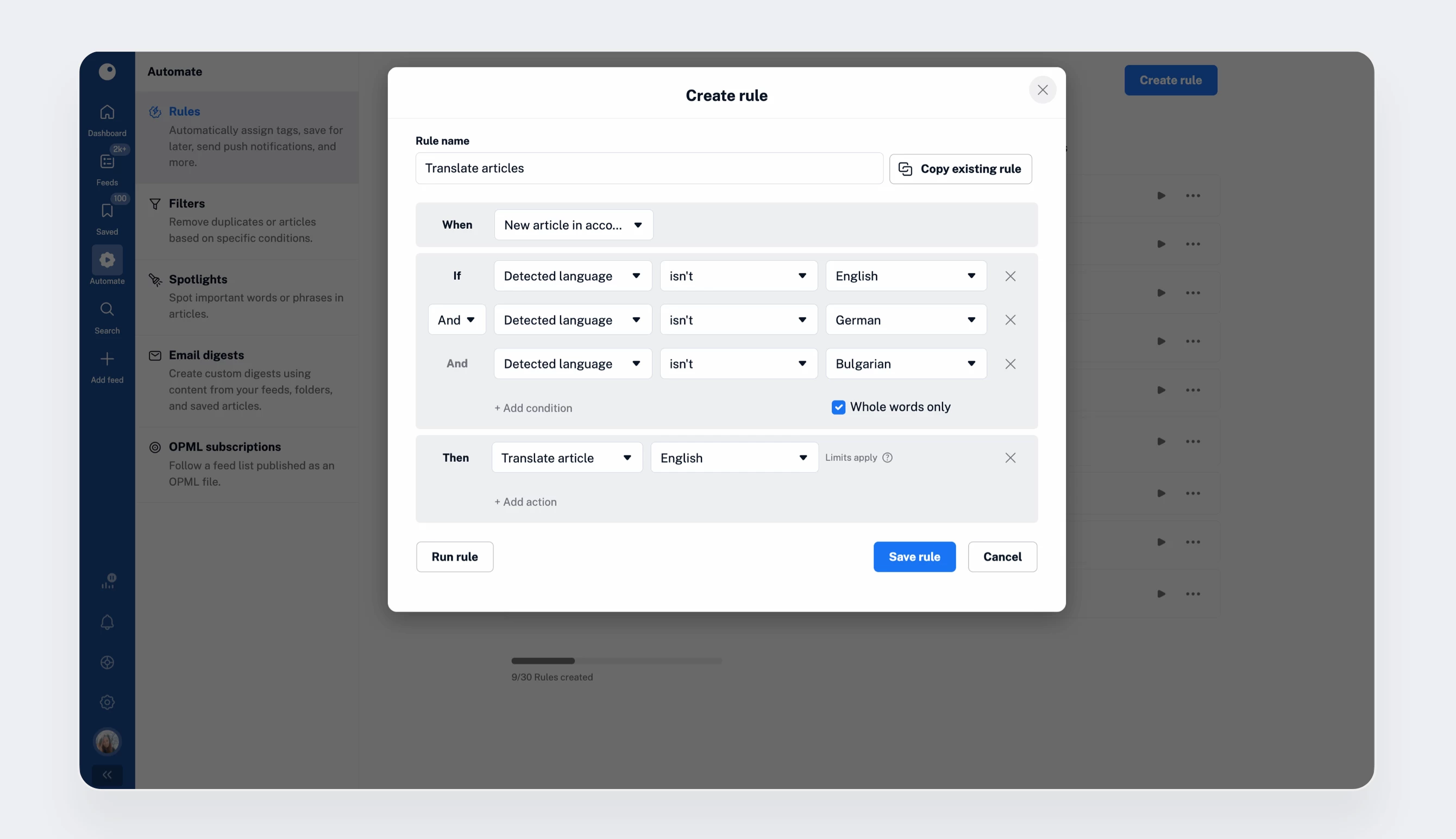
Pro users can also automate translations with rules. Simply go to Automate, click Create rule, and define when articles should be translated automatically.
Article translations are available in more than 50 languages, with unlimited usage included in the Pro plan so that you can follow global news without language barriers.
Text-to-speech
Text-to-speech is another Pro feature designed for flexible consumption, perfect for listening on the go.
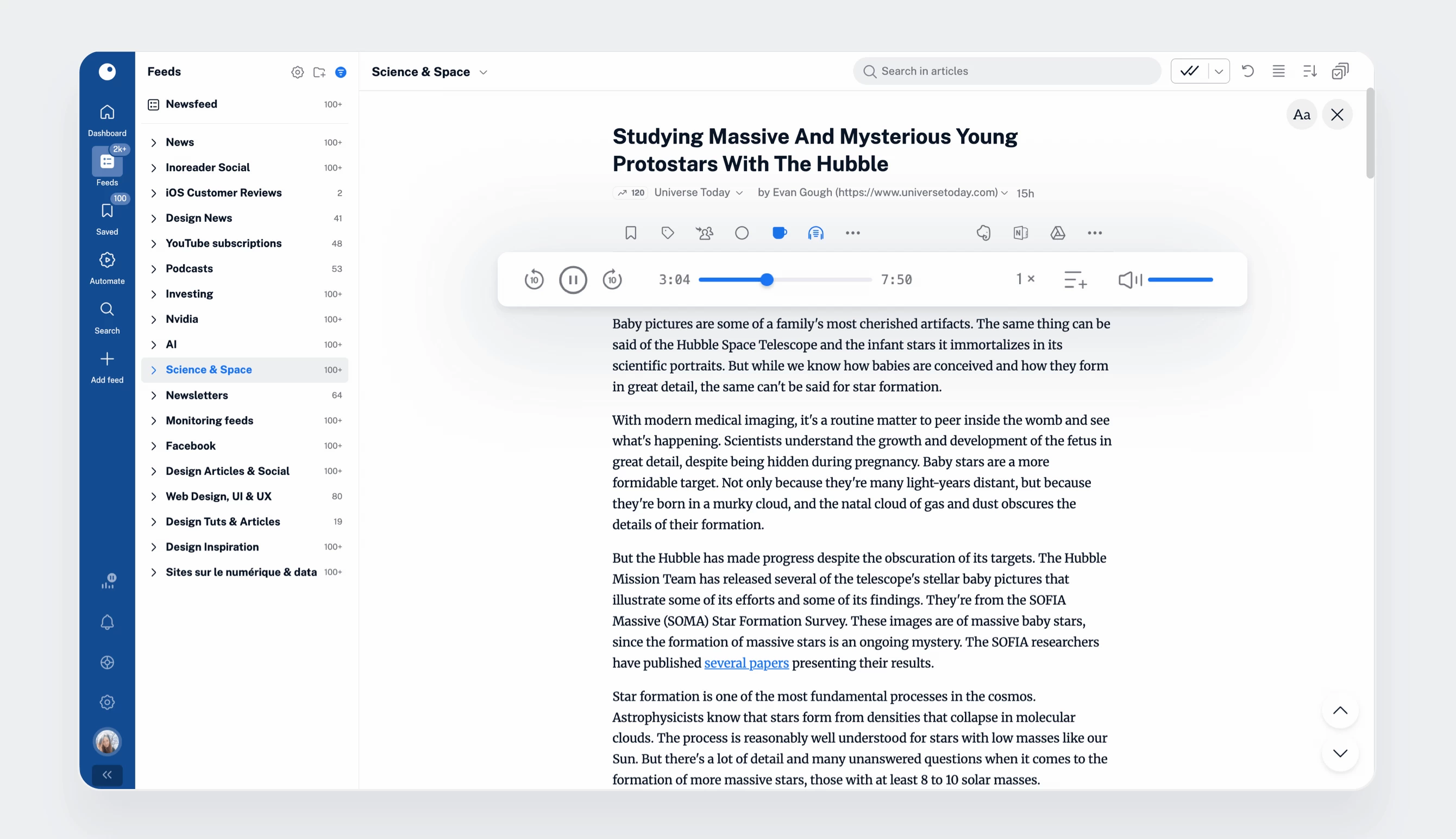
When viewing an article, click Listen with text-to-speech to convert it into audio. The audio version loads directly in the inline player, where you can:
- See the total duration and jump to any part of the article
- Skip forward or backward
- Pause, resume, and adjust playback speed or volume
- Add articles to your listening queue for uninterrupted playback
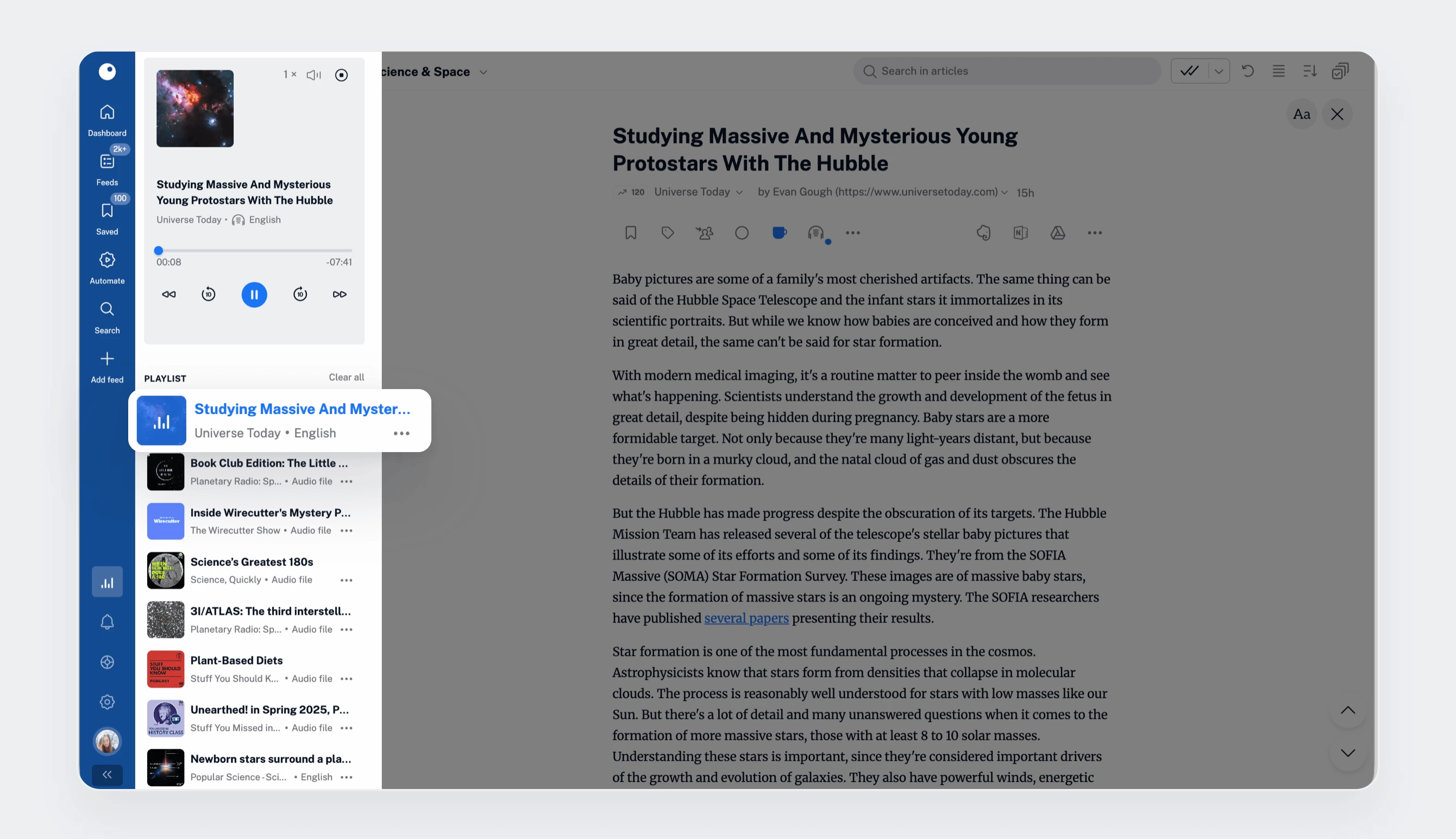
You can also mix articles and podcast episodes in the same listening queue. Access your playlist and the currently playing item from the tab bar, reorder items as needed, and keep listening in the background while you multitask.
On iOS and Android, you can track your listening progress and seek within the article using your system player.
Pro users enjoy unlimited access to text-to-speech, making it easy to turn reading time into listening time, wherever you are.
File uploads
File uploads bring Inoreader one step closer to becoming your central content hub. They let you add your own documents and convert them into articles you can read, organize, annotate, and share.
To upload files, go to Saved > Uploads, click Upload file, then drag and drop a file, browse your device, or paste a URL.
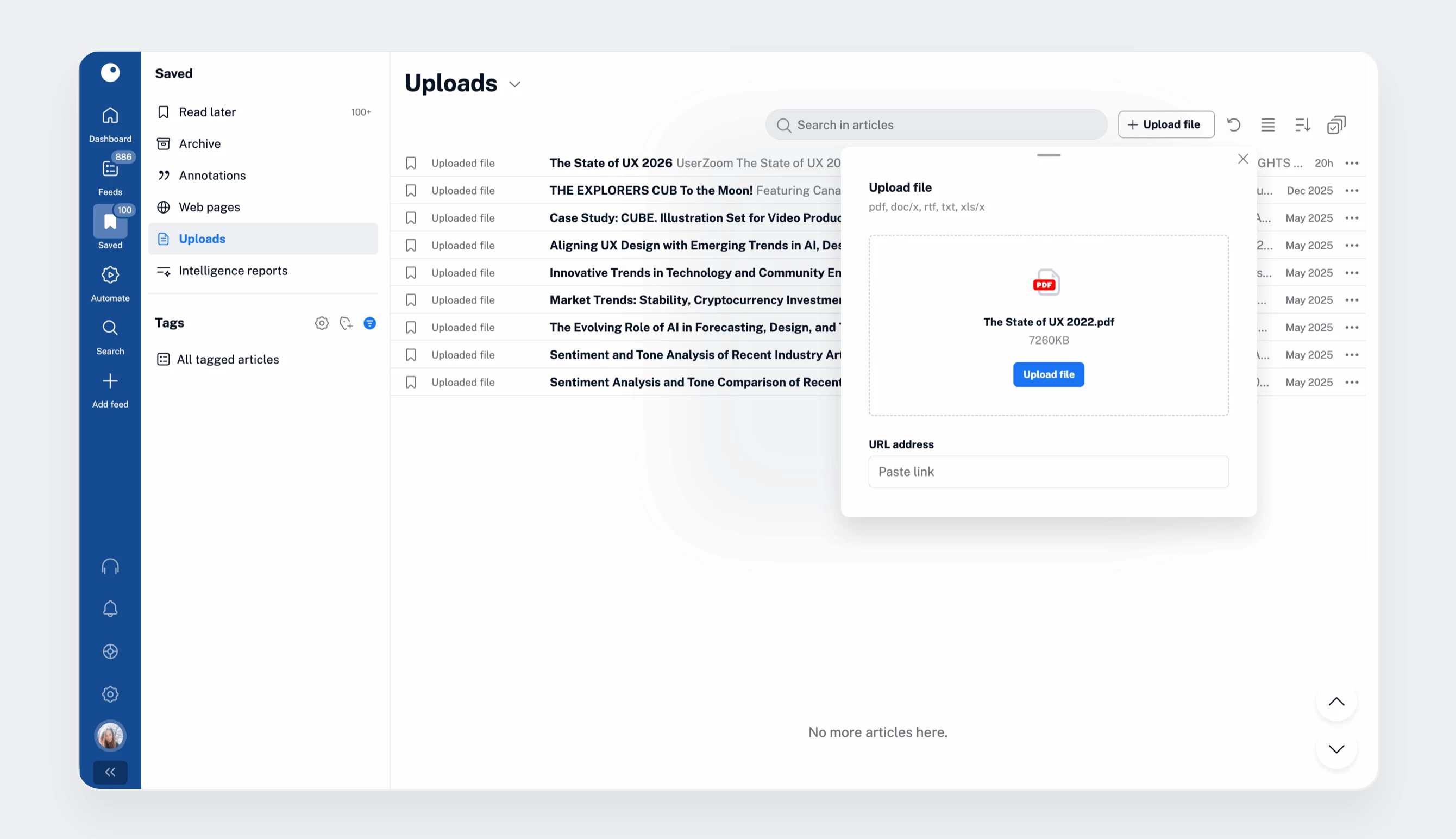
You can upload PDF, DOC/DOCX, RTF, TXT, and XLS/X files. PDFs are exceptionally well supported – instead of embedding them as static documents, Inoreader extracts their content and converts it into fully searchable articles.
Once uploaded, files become regular articles in your account. You can tag them, annotate them, include them in rules or monitoring workflows, and search through them just like any other content. Files are private by default, but you can generate public links to share via email, social media, output feeds, and more.
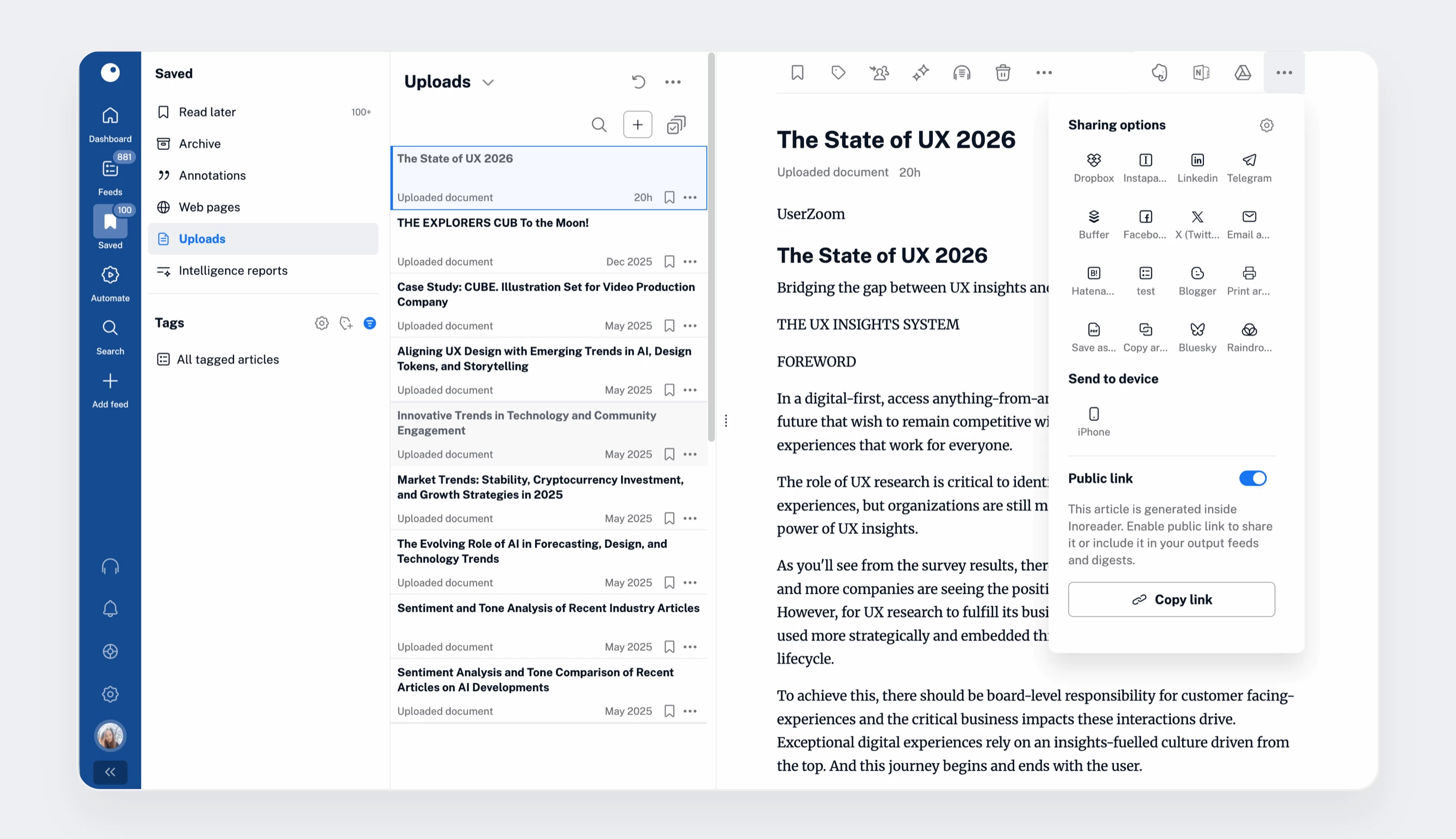
File uploads are ideal for collecting white papers, academic articles, internal documents, meeting notes, or spreadsheets – all stored in one searchable, organized place.
Annotations
Annotations help you actively work with content and capture insights as you read. They include highlights (marked text) and notes (comments on articles or specific highlights).
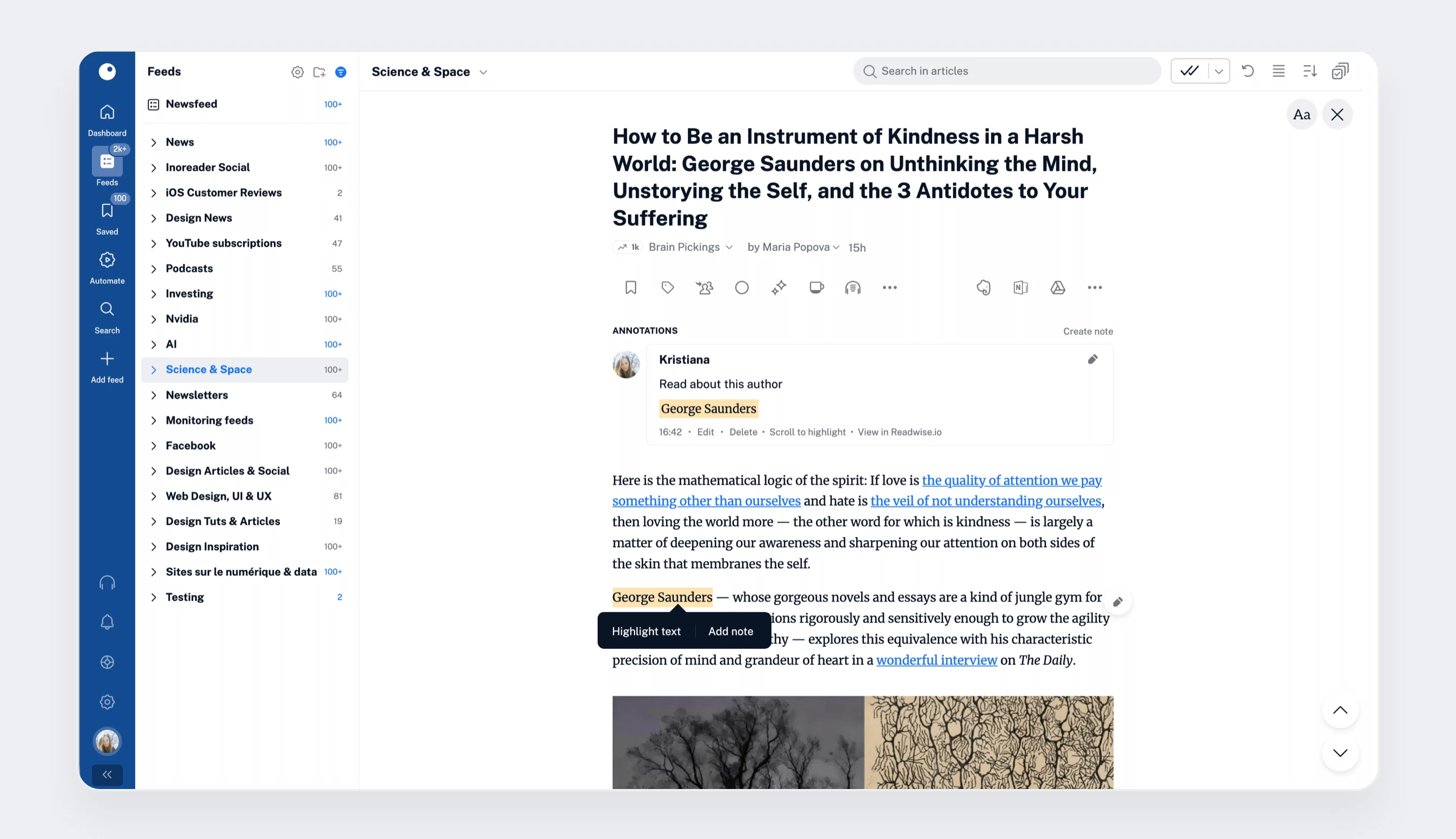
When you select text in an article, a menu appears allowing you to highlight it or add a note (which also creates a highlight). All annotations are listed at the top of the article view, where you can quickly navigate to them, edit them, or remove them.
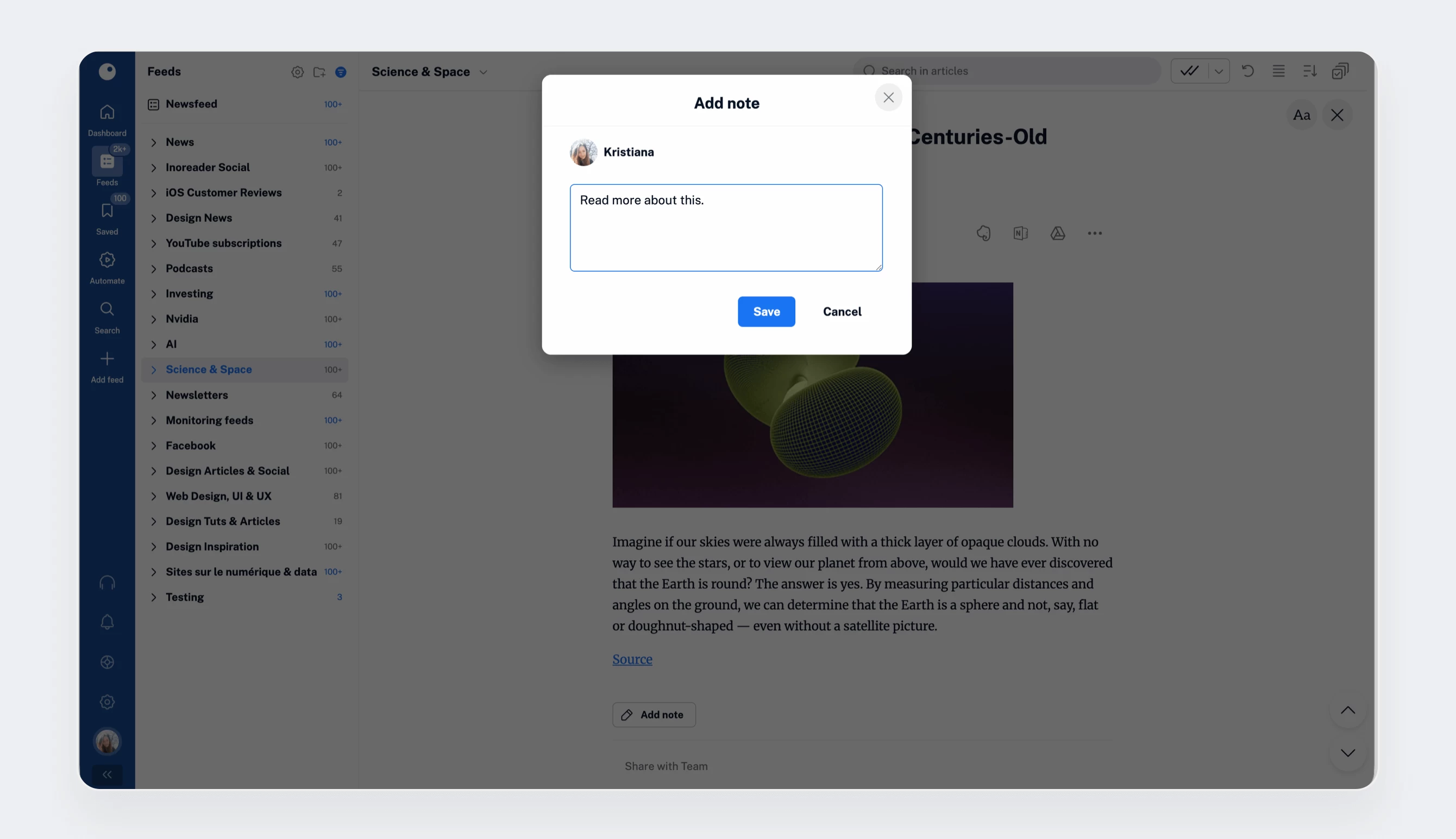
You can also add notes to an entire article by clicking Add note at the bottom of the article view.
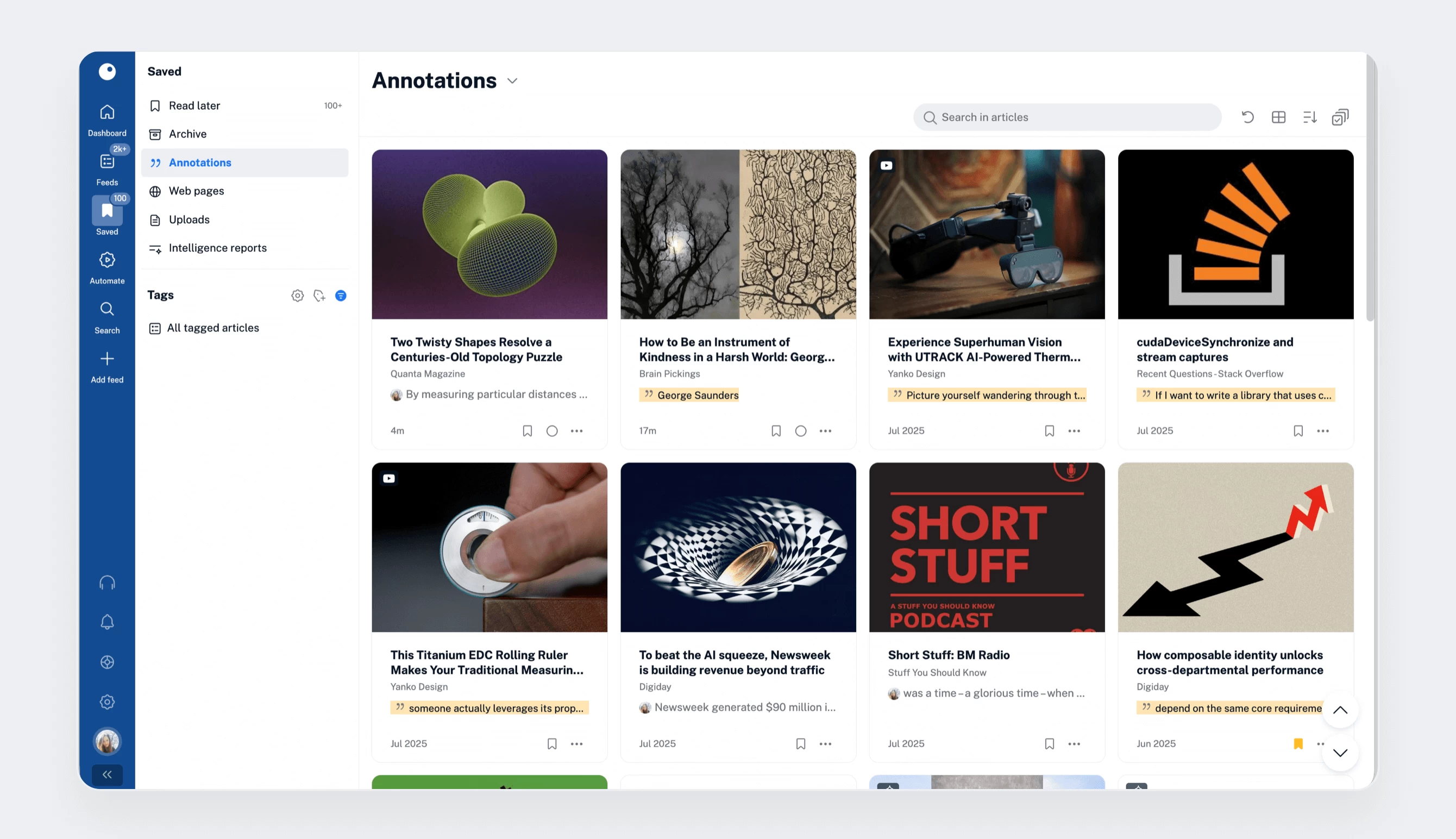
All highlights and notes are stored under Saved > Annotations. They remain fully searchable and editable, so your thoughts and research are always easy to revisit.
Notes are available on all plans, while highlights are a Pro feature. Both are supported in our mobile apps.
Offline mode
No connection? No problem. Offline mode lets you make selected parts of your account available even without an internet connection – perfect for commuting, traveling, or working in low-connectivity environments.
You can make feeds, folders, tags, annotations, and saved articles available offline. Even better, you can continue managing content offline by tagging articles, saving them for later, or marking them as read. All changes sync automatically once you’re back online.
Depending on your settings, the mobile app can also download new articles in the background, ensuring fresh content is ready when you need it.
To enable offline mode, open a section (such as a folder) in your account in the Inoreader app and tap the Download button in the upper-right corner. Tap it again to adjust offline settings.
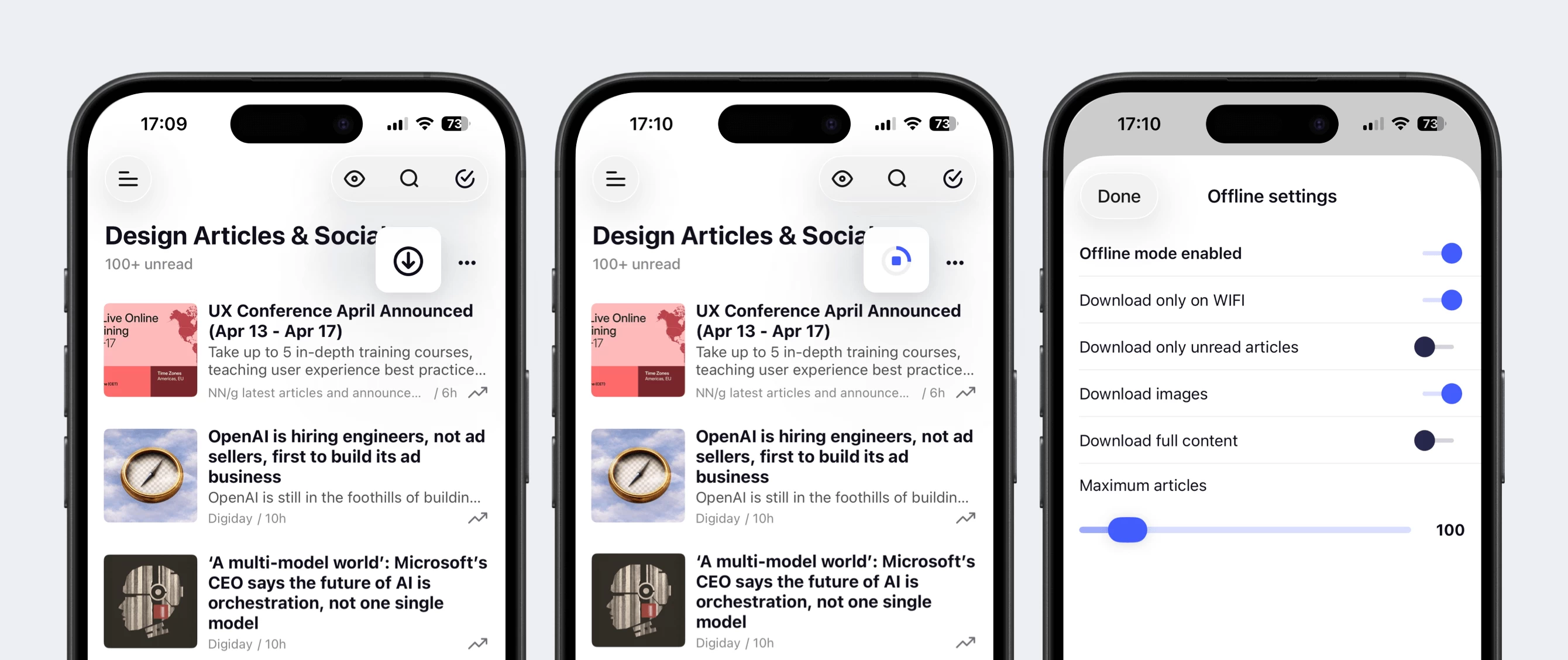
Alternatively, swipe right on iOS or long-press on Android, select Offline settings, configure your preferences, and tap Done. Offline sections are marked with a blue arrow in the sidebar.
Articles available offline are marked with a dedicated icon, making them easy to spot. This status updates in real time – for example, any article you save to Read later will be downloaded automatically if that section is set for offline access.

Other Pro perks
In addition to the features listed above, Pro users also benefit from:
- Full content persistence – Once full content is loaded manually or automatically on the web, it remains accessible in the app and offline.
- Magic sorting – Use this setting to surface the most popular and relevant articles at the top of your feeds and folders.
- Secure image proxy – Image requests are routed through Inoreader servers to reduce tracking and protect your privacy.
- Custom CSS – Advanced users can customize their interface from Settings > Power user settings > Custom CSS.
Make Inoreader work for you
With Inoreader Pro, you’re not limited to a single way of consuming content. Whether you prefer reading, listening, annotating, or working offline, you can shape the experience around your habits and needs.
In the next post of our Pro onboarding series, we’ll take things a step further and explore how Inoreader Intelligence helps you extract insights faster using the power of generative AI.